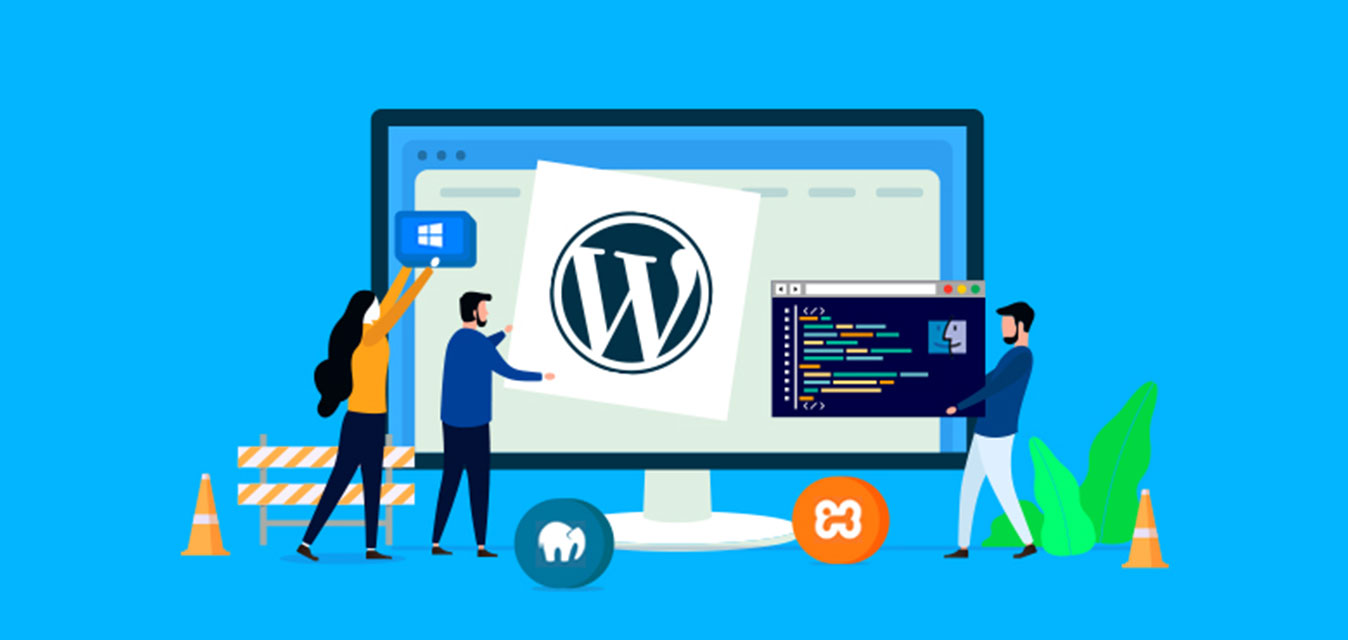
WordPress is one of the most favorite platforms for developing websites. This may be because of its simple, user-friendly interface as well as its easy-to-use plugins for increased support and usability.
Are you looking to install WordPress on your server but not sure how? This guide will help you figure out how to install WordPress on your server.
Set Up WordPress Manually
Even though installing WordPress on your server can be done in several ways, it is best to install it manually rather than going for a quick one-click installation, as it is often more secure and gives you more control.
Listed below are the steps required to install WordPress manually on your server.
Download the WordPress installation package
The first step is to download the WordPress package. You can always get the latest version directly from the official WordPress.org website. Save the ZIP file to your computer so you can upload it to your hosting account in the next step.
Upload It To Your Hosting Account
You can upload the WordPress package to your hosting account in three different ways:
- Uploading via FTP (File Transfer Protocol)
- Uploading via File Manager in your hosting control panel
- Uploading via SSH (Secure Shell), if your host allows it
Create the MySQL Database and User
- Once you have logged in to your cPanel, locate the MySQL Databases option under the Databases section.
- Click it and use the Create New Database area. Enter a name and click on Create Database.
- Next, create a database user with a strong username and password.
- Make sure to add the user to the database you created and assign the appropriate privileges.
- On the privileges page, you can choose All Privileges, or select specific options according to your requirements.
Fill in the Details in WordPress
To connect your database to WordPress, you’ll need to provide the details you created in the previous step. The steps below explain how to do this.
- Open your domain in a browser. The WordPress setup wizard should appear and request your database information.
- Enter the database name you created earlier.
- Enter the database username and password you just created.
- Use the database host information provided by your web host (usually
localhostfor many shared hosts). - Click on Submit to continue.
Run the Installation
If everything is configured correctly, you should see a screen with the Run the installation button. Click it to move on to the final setup steps.
On the next screen, you can:
- Set your site title.
- Create your WordPress admin username and password.
- Enter your admin email address.
When you’re done, click Install WordPress. Once the installer finishes, you’ll see a success message and a link to your new WordPress login page.
That’s it! You now have a fresh WordPress installation running on your server.
Other Methods of Installing WordPress
Some other common methods of installing WordPress include:
- Choosing a host that comes with WordPress pre-installed.
- Installing WordPress via cPanel using auto-installers like Softaculous or Installatron.
- Installing WordPress on a local environment (localhost) for development and testing.
Final Word
Choosing a web hosting provider that offers an auto-installer for WordPress is the quickest and easiest way to get started. You can even opt for a host that comes with WordPress pre-installed. MJM Designz in Orange County and Los Angeles is your one-stop solution for WordPress installation, setup, and custom development.